 NFC keychain guideBack to CraftQuest
Program your NFC keychain.
Put a website link or contact card on your CraftQuest keychain in a few quick taps. Start by downloading NFC Tools for your phone.
Look for NFC Tools by wakdev with the orange app icon.
Step by step
Choose what your keychain shares.
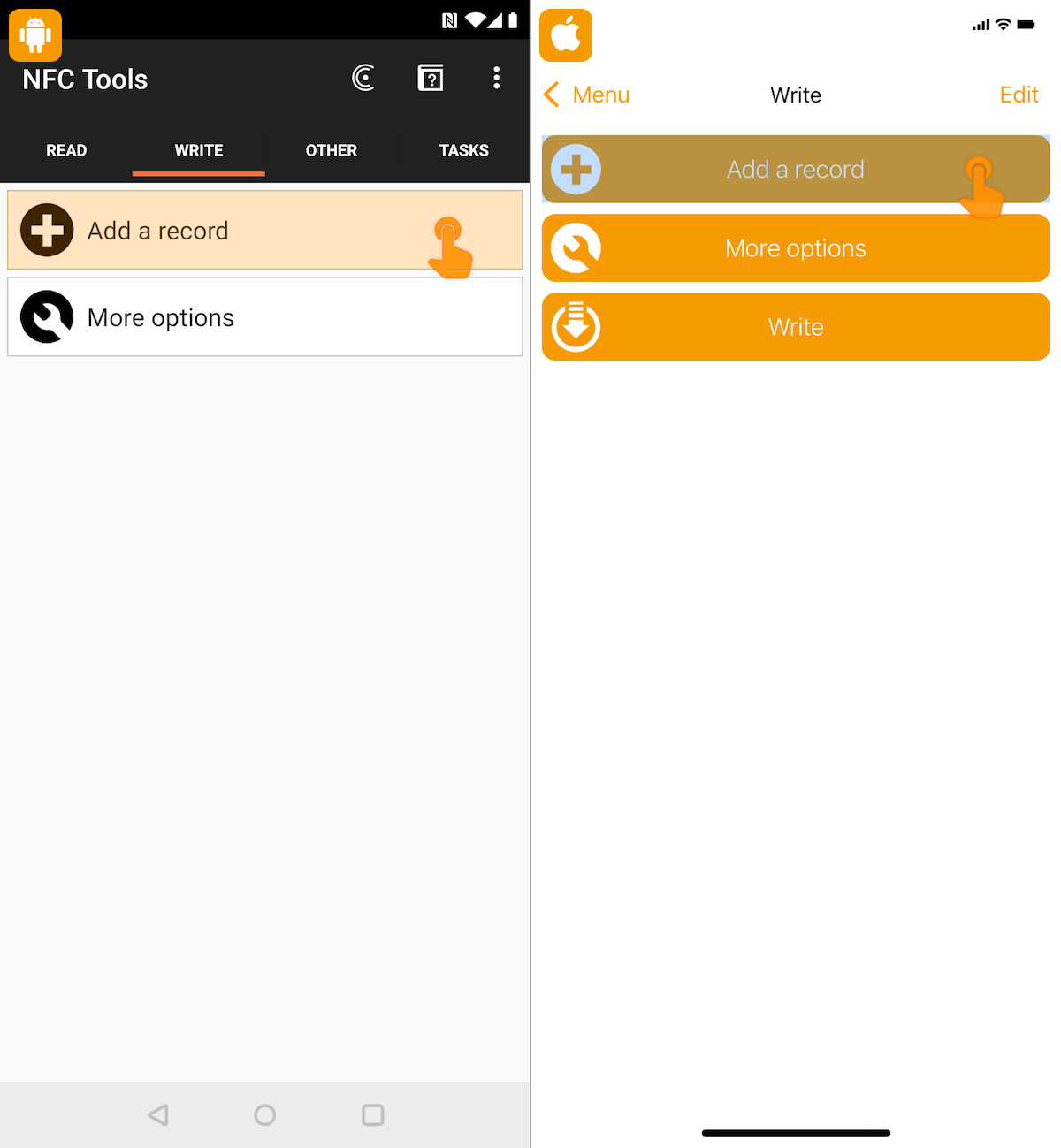
The screens may look slightly different on iPhone and Android, but the button names and order are the same.
Leave the tag unlocked. “Lock Tag” can permanently prevent future changes.
- 01
Open the Write tab
Open NFC Tools, tap Write, then choose Add a record.
Write → Add a record - 02
Pick what you want to share
Choose one of these record types, then add your information.
URL / URIWebsite link
Tap URL / URI, paste the complete link including https://, then tap OK or Validate.
https://your-link.comContactContact card
Tap Contact, enter the name and any details you want to share, then tap OK or Validate.
Phone Email WebsiteContact-card support varies by phone. For an iPhone-friendly tap, use a contact-page HTTPS link instead.
- 03
Get ready to write
Back on the Write screen, tap the Write / X Bytes button.
Write / X Bytes - 04
Hold the keychain close
Touch the NFC keychain to your phone and keep it still until the app confirms the write.
Writing complete ✓ - 05
Test your tap
Close NFC Tools, wake your phone, and tap the keychain again. Your website should open. Direct contact records may require an NFC reader app.
Done — your keychain is ready
Once you know the basics
Hey—what else can your keychain do?
NFC Tools gives you plenty of ways to make your keychain useful. These are all the record types available in the app.
Links & content
- Text
- URL / URI
- Custom URI / URI
- Unit.Link
- Search
- Video
- File
- Application
People & sharing
- Social networks
- Contact
- Phone number
- SMS
- Emergency
Places & directions
- Location
- Custom location
- Address
- Destination address
- Proximity search
- Street View
Everyday shortcuts
- Payment Link
- Bluetooth
- Wi-Fi network
- Data
Available options and actions may vary slightly by phone.
Find the sweet spot
Where should you tap?
iPhone
Hold the keychain near the top edge of the phone.
Android
Try the upper or middle back. Antenna placement varies.